Core design in Microsoft Publisher
3/18/2020
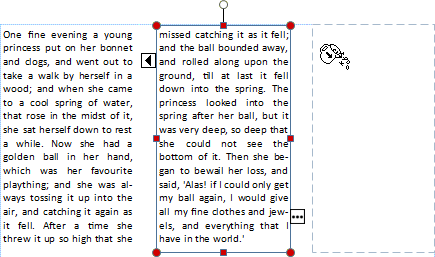
Link text boxes
If you have too much text to fit in a text box, select or create another text box and link them.
- Select the overflow button
 .
.
The cursor changes to a pitcher  .
.
- Select the text box you want the text to flow into, or click anywhere on the page to create a new text box for the overflow text.
Swap pictures
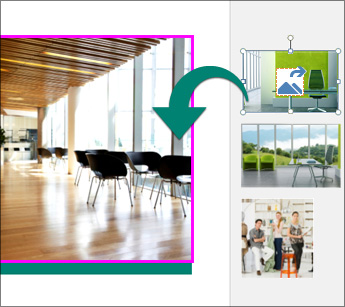
Drag and swap pictures from the scratch area to your layout until you find the layout you like.
- Select a picture.
- Drag the picture by the mountain icon where you want it.
- When the pink highlight appears around the picture, release the mouse button.
Crop a picture
- Select the picture.
- Select Picture Tools Format > Crop.
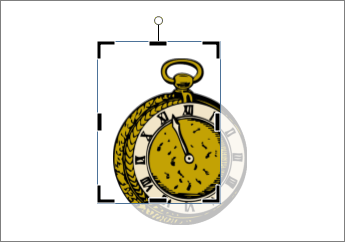
- Use the cropping handles to size the picture:
- Drag a center handle to crop that side.
- Hold Ctrl and drag a center handle to crop evenly on two sides.
- Hold Ctrl+Shift and drag a corner handle to crop all four sides evenly.
- Click outside the picture to crop.
Add effects to pictures
You can add effects like shadow, reflection, glow, soft edges, bevel, and 3-D rotation to pictures.
- Select a picture.
- Select Picture Tools Format > Picture Effects.
- Select an effect: Shadow, Reflection, Glow, Soft Edges, Bevel, or 3-D Rotation.
- Select the effect you want.

Add effects to text
You can add shadow, reflection, glow, and bevel effects to text.
- Select the text you want to format.
- Select Text Box Tools Format > Text Effects.
- Select the type of effect: Shadow, Reflection, Glow, or Bevel.
- Select the specific effect you want.


